
Your work doesn’t live in one place. It is spread between Slack, Gmail, Drive, Notion and half a dozen other tools. Each one came in for a good reason, but the problem appears when you need to cross-reference information: copy from Slack, search in Linear, check emails, open Drive. The connectorsCCMThey allow Claude to access all those sources without copying anything by hand, working with data in real time.
The problem: work spread across too many places
A fourteen-person tech SME used Notion for the roadmap, Slack for conversations, Drive for documents, Gmail for clients, and Linear for tickets. No tool was the problem. The problem was on Monday morning: every week someone had to make the report, crossing data from everywhere. Copy from Slack. Search in Linear. Check emails. Open Drive. Half an hour long, if no one interrupted.
Claude was already thinking well, but he continued to live outside of real work. You passed copied texts, you pasted summaries, you transferred context by hand. The information arrived, but outdated and fragmented. Until they connected it directly to the sources.
What is a connector, in practice
A connector is a bridge. Allow Clauderead and writein an external tool from a conversation. Does not copy data by hand. Does not simulate. Check the actual source. When Claude summarizes a connected Slack, he’s reading Slack, not a pasted copy. When you cross-reference Gmail data with a state in Linear, you are querying both systems in real time.
The difference between working with connectors and without them is the difference between living with photographs from two days ago and living with the window open. With connectors, Claude sees what is happening now, not what you remembered happening.
What is an MCP and why you don’t need to know much more
MCP meansModel Context Protocol. It is the standard that makes it possible for connectors to work with Claude. You can forget the technical name. The only important thing is this: the MCPs define what Claude can see and with what limits. Nothing magical, nothing hidden. Just clear access rules that you configure.
Each MCP connector exposes specific capabilities: reading messages, searching documents, creating tasks. And each capacity has independent permissions. This means you can give Claude read access to Slack without giving him permission to write messages. Control is granular, it is not all or nothing.
The five connectors that cover 90% of the cases
Most teams don’t need twenty integrations. Five is usually enough:
- Gmail: real emails, not manual forwardings. Claude can search emails by sender, subject or date, and generate summaries without you copying anything.
- drive: live documents, not static copies. Claude reads the current content of any shared document.
- Slack: messages, threads and team context. Ideal for summarizing conversations and extracting decisions.
- Notion: statuses, roadmaps and internal documentation. Claude can query databases and pages in real time.
- Ticket tool(Linear, Asana or similar): Track open tasks, blocks and progress.
With those five, Claude stops being an outside observer and becomes part of the real workflow, with access to updated information when he needs it.
Permissions: less is more
When you connect a tool, Claude asks for permissions. The rule is clear:always starts read-only. Reading reports, searching messages, and summarizing activity covers most initial uses. The deed is granted later, when you already trust and have verified that the information you read is correct.
Well-configured connectors allow Claude to generate real weekly reports, answer questions using current data, cross-reference information between tools, and prepare drafts based on real activity. The important thing is that you no longer work with memories: you work with the current state.
What connectors CANNOT do
MCP connectors have clear limits: they can’t break existing tool permissions, they can’t bulk delete data, they can’t bypass human checks, and they can’t “do it all themselves.” If something requires critical judgment or human validation, the process stops. And it is good that it is so. Connectors expand your ability to access information, they do not replace your judgment.
How to start without breaking anything
The SME didn’t connect everything on the first day. Connected Slack. They asked for a simple weekly report. It worked. The following week they added Linear. Then Drive. Each step added value without creating chaos. That’s mature integration.
How to get started: one connector at a time
The practical exercise: chooseonetool you use every day. Connect it in reading mode. Ask Claude:
“Consult this tool and generate a summary of what happened in the last 7 days, indicating decisions, blockages and open tasks.”
Evaluate if the result saves real time. If you save it, you already have your first functional integration. If not, adjust the prompt or change tools before connecting the next one.
Don’t connect five services at once. Don’t grant write permissions on the first day. Don’t try to automate before you understand the flow. Connecting well is building. Connecting wrong is noise. The natural progression is: one connector in read, two weeks of actual use, then add the second with just the necessary permissions.
Once your connectors are in place, the next step is to turn that information into tangible documents. That’s where theskills, which we will see in the next chapter.
This is just a sample. The complete book teaches you how to turn AI into your most productive employee.
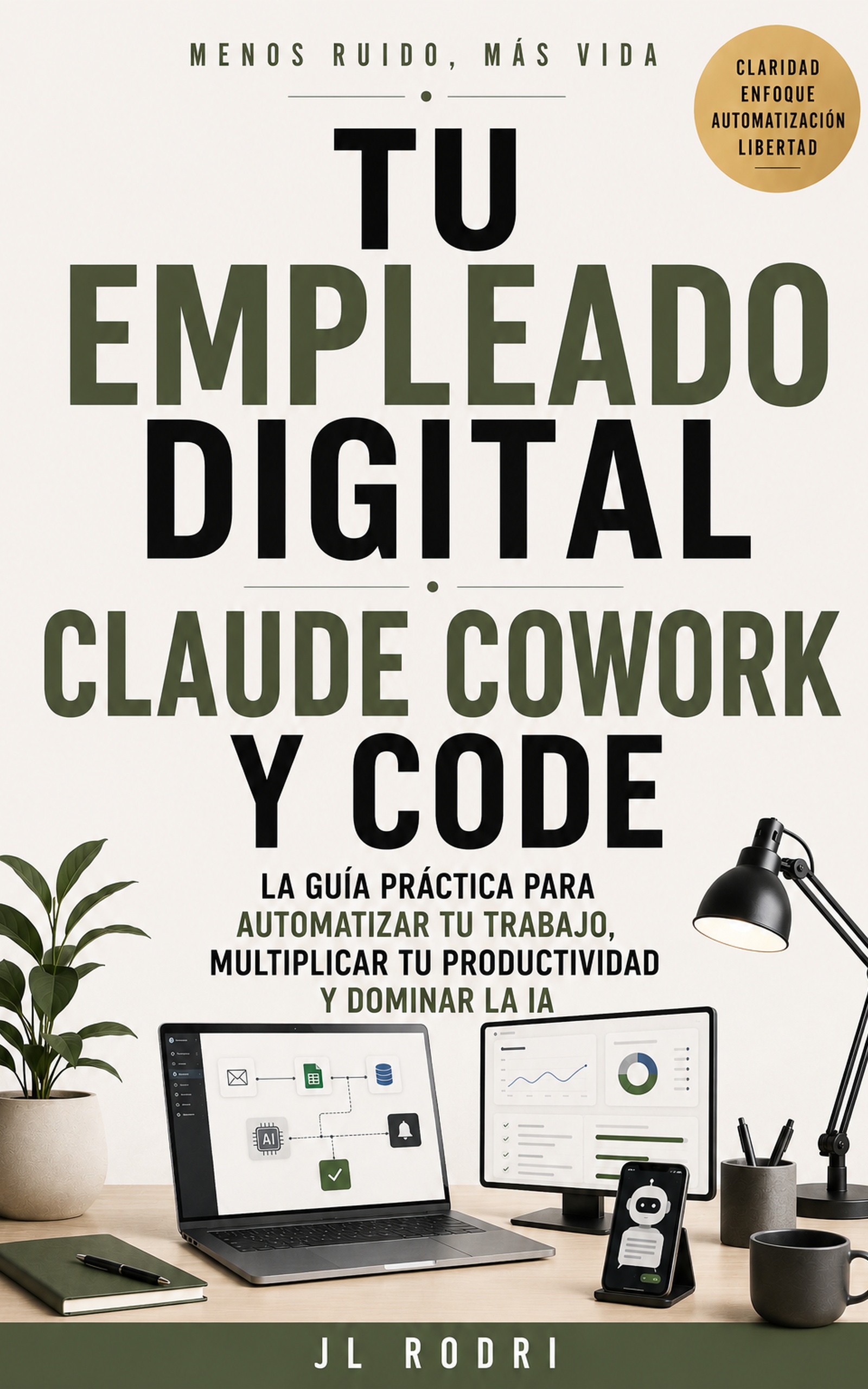
📖 Your Digital Employee
Claude and AI as your best collaborator