
If you already use Claude to think and decide, but the manual work still falls to you, you are only using half of its potential. ClaudecoworkAutomate your computer so that Claude not only gives his opinion on the work, but does it. Move files, rename documents, organize folders – all without touching the mouse.
The problem: constant friction in mechanical tasks
Carlos is a self-employed administrator. Manage clients, invoices, PDFs and documents that go back and forth between email and desktop. His problem was not not knowing what to do: it was having to do everything with his hands. Eighteen folders on the desk. Names like “Various”, “Various2”, “Pending”, “Pending_new”. Each file was more or less where it should be… when Carlos remembered.
I used Claude to think and decide, but in the end the real work was still manual: moving files, renaming documents, detecting duplicates. Claude’s chat was useful for planning, but execution was still humane. Until someone taught him Cowork. And Claude stopped giving his opinion on work todo it.
What is Claude Cowork, explained without epic
Cowork is Claude with hands. It is not another AI or another model. It’s the same Claude, but authorized tosee and actwithin a specific folder on your computer. The difference is substantial: it no longer tells you what to do. He does it.
In normal chat, Claude analyzes, decides and gives you instructions. In Cowork, Claude lists files, proposes actual changes, moves, renames or generates documents. If a task involves touching files, Cowork is almost always a better choice. The transition from chat to Cowork does not require learning anything new: it just changes the way you interact. You tell him what you want and Claude runs it directly on the files.
The permissions model: only see what you connect
Cowork does not see your entire computer. Goonly what you connect: a folder, nothing more. Inside that folder you can read files, write new ones, move or rename. Outside of there, it doesn’t exist. This limitation is not a problem: it is the guarantee. You control exactly what you can touch and what you can’t.
The permissions model is deliberately restrictive. Claude can operate within the sandbox you define, but he cannot access anything outside of it. This means that if you connect a client folder, it can’t touch your billing folder, your desktop, or anywhere else on the system. The perimeter of action is clearly delimited, which reduces the risk to zero if you follow good practices.
The golden rule: plan before action
Carlos quickly learned a habit that he never broke: before touching anything, Claude has to explain what he is going to do. Step by step. No exceptions. A good Cowork prompt starts like this:
“Before making any changes to this folder, tell me exactly what files you are going to touch, what actions you are going to perform, and wait for my confirmation.”
That step turns risk into control. Don’t delegate blindly: first you review the plan, then you authorize. It’s like reviewing the budget before approving an invoice. There is no rush. Urgency should never come before safety.
Which tasks work especially well in Cowork
There are clear patterns where Cowork shines because they are mechanical, long, and prone to human error tasks:
- Sort files by client or date– Take a messy folder and create subfolders with the correct structure, moving each file to its place.
- Rename documents with a clear convention: convert “factura_marzo.pdf” into “2024-03_Factura_ClienteX.pdf” consistently across an entire folder.
- Detect duplicates– Identify identical or nearly identical files that take up space and cause confusion.
- Generate new files from others– Create summaries, partial reports or derived documents without manual copy and paste.
- Prepare clean folders for a project– Create the empty folder structure with the correct naming before starting.
They are tasks that anyone can do, but they consume valuable time and are easy to do wrong when done quickly.
What you should NOT do with Cowork
Not everything goes. Don’t use Cowork for unbacked folders, for sensitive documents without first deciding on a privacy policy, or for tasks that involve legal or financial decisions. Cowork executes very well, but the responsibility is still yours.
Start with something that, if it breaks, will only cost you time. Don’t start with your tax folder or critical documentation. Raise the level gradually, when you already trust the system. The book’s recommendation is clear: if you wouldn’t start handling that folder without gloves, don’t give it to Cowork on the first day.
When Cowork is doing well in a low-risk portfolio, it’s time to expand. You can connect active project folders, always backed up and reviewing plans before authorizing. The key is not the speed of adoption, but the strength of trust you build with each successful session.
How to get started today
Choose a low-risk folder. Connect it to Cowork. Request a plan with this prompt:
«List the files in this folder and propose a clear structure with subfolders. Don’t move anything yet.
Review the plan. Authorize only if you understand everything. That feeling of control is key. Once you see that Cowork does exactly what you decide, you can delegate increasingly complex tasks with complete confidence. The learning curve is short: in one session you will see tangible results. The next natural step is to connect Cowork with your external tools, which we will cover in the next chapter on connectors andCCMs.
This is just a sample. The complete book teaches you how to turn AI into your most productive employee.
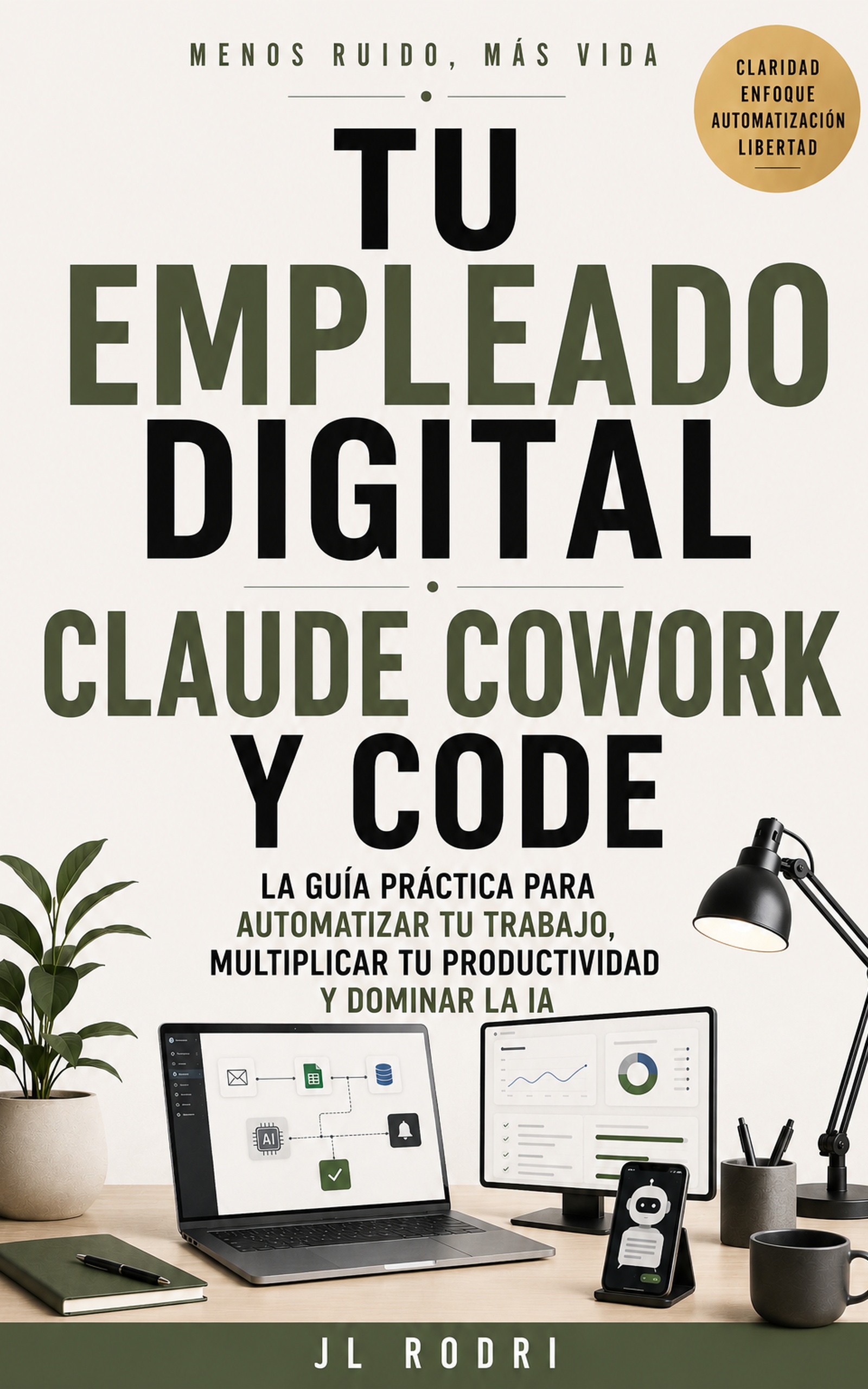
📖 Your Digital Employee
Claude and AI as your best collaborator