Most professionals treat a project like a folder: everything goes in, and quality quietly goes down. In ChatGPT, a project is a context container — chats, files and instructions the assistant uses for every conversation inside it. Choosing what belongs there is the single highest-leverage habit in daily work with AI.
Name projects for the work, not the moment. “Q1 client reports” still describes the space in six months; “new stuff” never does. A clear name sets expectations before a single word is typed, and it matters even more once the project is shared and the name is the only label your teammates see.
What a project actually does
Projects keep related chats, files, and instructions together, so ChatGPT can use the same context across work like writing, research, or planning. That context is powerful when it is curated and noisy when it is not. Project instructions also apply only within that project — and they override your global custom instructions, so a sloppy instruction written once will shape every conversation in that space.
The three layers you control
- Project instructions: the standing rules for this workstream.
- Files: the reference material the assistant may read.
- Chats: the working conversations that carry context forward.
Read the three layers as a checklist, in this order. Instructions first: they are the cheapest to fix and the most expensive to forget, because every later chat obeys them. Files second: each one earns its place by being current and needed. Chats last: they are the record of decisions, not the place where reference material goes to retire. Walking the checklist before starting any new chat of consequence takes a minute and prevents the slow drift that no single conversation ever reveals.
Why the override surprises people (hypothetical)
Suppose your global instructions ask ChatGPT to end every reply with a suggested next step, and your project instructions say to be brief and direct. Inside that project, replies stop carrying next steps. Nothing is broken — the override worked exactly as designed. The fix is small: restate in the project instructions whatever you still want from your global setup, and treat the project box as the whole rulebook while you work inside it.
You can also test the override deliberately. Write one short, unmistakable rule in the project settings, start a fresh chat in the project, and ask for a response that would normally draw on your global preferences. If the project rule wins, the boundary works as documented, and you know exactly which rulebook governs the space before real work depends on it.
Two habits that pay off all week
First, write the instructions before the first chat: the role, the constraints, the output format, and what the assistant should ask about when something is unclear. Second, remember that the container also remembers — projects hold built-in memory, so chats and files you create or upload inside one stay available to later conversations there, and on Plus and Pro a new question prioritizes the project’s own chats and files. Curate the container once and it pays you back every day after.
What a project is not
It is not an archive. Files that no longer represent the current state — old templates, superseded drafts, abandoned versions — actively damage output quality because the assistant cannot know which document you meant.
Rules for what goes in — and what stays out
One test: the repeat question
Before adding anything, ask: does every conversation in this project need this? Style guides, current templates, the approved terminology list: yes. One-off drafts for other clients: no.
The test works because it mimics what the assistant does: it does not judge the quality of a file, it simply weighs it as available context. A brilliant strategy note from an unrelated account is noise inside a reporting project, in exactly the same way a duplicated template is. Frequency of use, not importance on its own, is what makes a file belong.
The second test: would a new hire need it?
The repeat question filters by frequency; this one filters by role. If a colleague joined tomorrow, could they work from what the project holds? The manual that defines the deliverable, the checklist that was signed off, the terminology list the team argues from: those stay. The chat where you changed your mind twice: that belongs in chat history, not pinned as reference material.
A worked example (hypothetical)
A small agency runs a “Client reports” project. Inside there is the report template (v4, approved), the tone manual, and three example reports. An intern uploads v2 of the template “just in case”. Two weeks later the AI starts producing reports that mix v2 headings with v3 criteria. The context was not broken by the model — it was broken by the folder.
Version hygiene inside the project
When a template or manual changes, remove the old file the same day you add the new one. Keep the name current: report-template-v4, not report-template-final-v4-really. Future-you, and every teammate who joins the shared project, reads the folder as instructions.
The same discipline applies at the moment of upload. Give files their final, dated, versioned name before they enter the project, not after three chats have already cited them. A file that arrives as download (7).pdf teaches every future conversation to guess; a file that arrives as style-guide-2026-10.pdf tells the truth about itself every time it is used.
Curating instructions like files
Instructions age the way files do. A rule written for the v2 template still says “follow the v2 headings” after v4 arrives, and the assistant obeys it as faithfully as the day it was written. Read your project instructions during the same weekly pass as the file list, and rewrite any line that references a document you deleted. An instruction is a standing order, and standing orders deserve the same review as standing files.
Memory: project-only or default
The switch that matters most
Projects have a memory setting: default memory or project-only memory. In default mode the project shares context with the rest of your account. In project-only mode, work stays inside the project — and shared projects are automatically set to project-only memory. If your project handles client material, project-only memory is the safer default.
Two clients, two boundaries (hypothetical)
Picture a personal “content ideas” project on default memory: your saved memories are referenced, and chats there can draw on conversations outside the project. Now picture a “Client A” project on project-only memory: saved memories are not referenced, chats can draw only on each other, and conversations outside the project cannot reach in. Same tool, two different walls — and you choose the wall per project, because there is no account-wide switch that turns every project project-only.
The boundary works in both directions, which is the part teams tend to miss. Project-only keeps outside conversations out of the project, and it also keeps the project out of everything else. For client work that means a question asked inside one client’s space cannot quietly draw on another client’s material — and the project’s own discussions stay inside its walls.
What shared projects do
When you share a project, ChatGPT draws from anything in it — chats, uploaded files and custom instructions — so teammates inherit the same context. That is a strength for teams and a risk for hygiene: one careless upload now shapes everyone’s answers.
A switch you cannot walk back
Sharing changes the memory setting from that moment on, and it cannot be reverted to default for that project. Members’ personal memories and individual instructions stop coloring answers inside the space, which protects both sides. The practical consequence: finish your personal experimentation before you invite the team, not after.
Moving a chat into the project
Existing chats can be moved into a project, and once inside they inherit the project’s instructions and file context. Use that when work started messy and you want it governed by the project rules from now on.
Moving is also reversible housekeeping in the other direction: members can move their chats out of a shared project, archive them, or delete them, and once a chat leaves, the rest of the project — including the owner — no longer sees it. Either way, the moment a chat crosses the project boundary it changes what it inherits and who can find it, so treat the move as a deliberate act, not a drag-and-drop reflex.
Verify what the assistant actually used
Check the sources per answer
After an important response, check which items the answer drew on. If a reply cites a document you did not expect, that is your signal: something inside the project has drifted, and it is time to clean the folder.
Drift you can catch (hypothetical)
Imagine asking for a compliance summary and watching the answer lean on the operations manual you replaced months ago. The assistant did not fail — it used the source you left in the project. Remove the superseded file, re-ask, and compare the two answers: the cleaner result, built on the current manual, closes the loop in minutes and shows the cleanup was not cosmetic.
Make the check a standing rule for any deliverable that leaves your desk: read what the answer drew on before you trust what it says. A response built on expected sources is evidence you can defend; a response built on unexpected sources is a maintenance reminder wearing the clothes of an answer.
The weekly five-minute cleanup
Once a week: open the project, read the file list, remove what is superseded, and re-read the project instructions. This small ritual is what separates a context container from a junk drawer — and it is the piece most teams skip.
Where the book picks this up
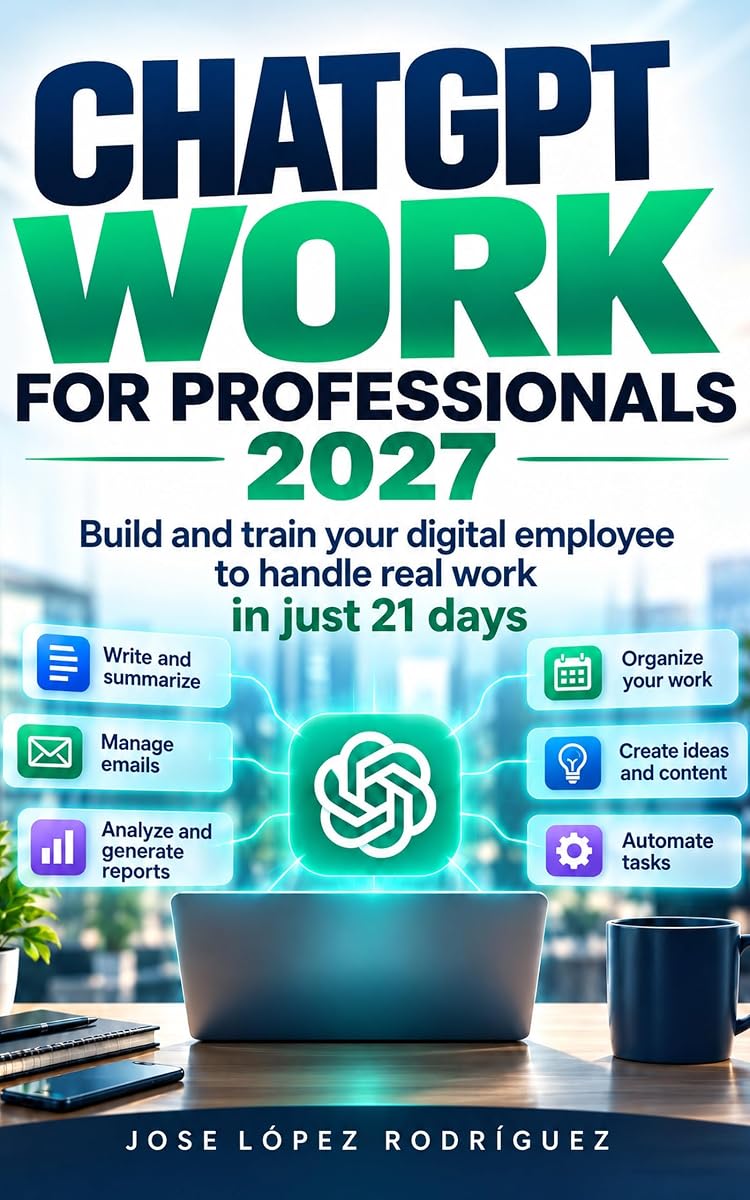
In ChatGPT Work for Professionals 2027, projects appear as part of a wider system: handbooks, prompt libraries and review logs that stay coherent across tools and months. The project is the container; the book is the operating manual.
The value of that framing shows up on ordinary days. A handbook answers the question a new teammate would ask; a template answers your own question from last month; a prompt library answers the question you would otherwise retype weekly. None of them needs a clever model to matter — they need to be current, findable and versioned, which is exactly the hygiene this article applies to projects.
The method around the container
That system leans on three practical pieces: handbooks that spell out how each recurring deliverable is produced, templates you reuse instead of rebuilding, and libraries of prompts that are kept, versioned and improved as they prove themselves. Add review logs and the parts interlock: the log tells you when a handbook went stale, the handbook points to the right template, and the project holds all three pieces exactly where the work happens.
You are one cleanup away
Open your most-used project today and apply the repeat-question test to every file. The English edition of ChatGPT Work for Professionals 2027 is free right now on Amazon — the card below has the details.
Free right now on Amazon
ChatGPT Work for Professionals 2027: Build and train your digital employee to handle real work in just 21 days, by Jose López Rodríguez, is currently free ($0.00 / €0.00, −100%) on Amazon. Download it in seconds: search for the exact title or the ASIN B0HMP1495Q on your Amazon store.